[Tutorial] Squirrel VPN User Guide (Desktop Version)
![[Tutorial] Squirrel VPN User Guide (Desktop Version)](https://devcdn.pseo.one/694b8c5feb29738fb9516944/694b8c5fd1cc3dd4fcb00fe5/tutorial-squirrel-vpn-user-guide-desktop-version/cover-user-manual-desktop.png)
[Tutorial] SquirrelVPN User Manual (Desktop Version)
Tutorial Content:
SquirrelVPN Desktop Version User Manual.
Squirrel Desktop Version: How to download and purchase?
Please visit: Squirrel Official Website or Alternative Official Website (No VPN required) to download and purchase. First, download and install the Squirrel client, register a Squirrel account, and then proceed to the official website to make a purchase.
Login & Registration
Login:
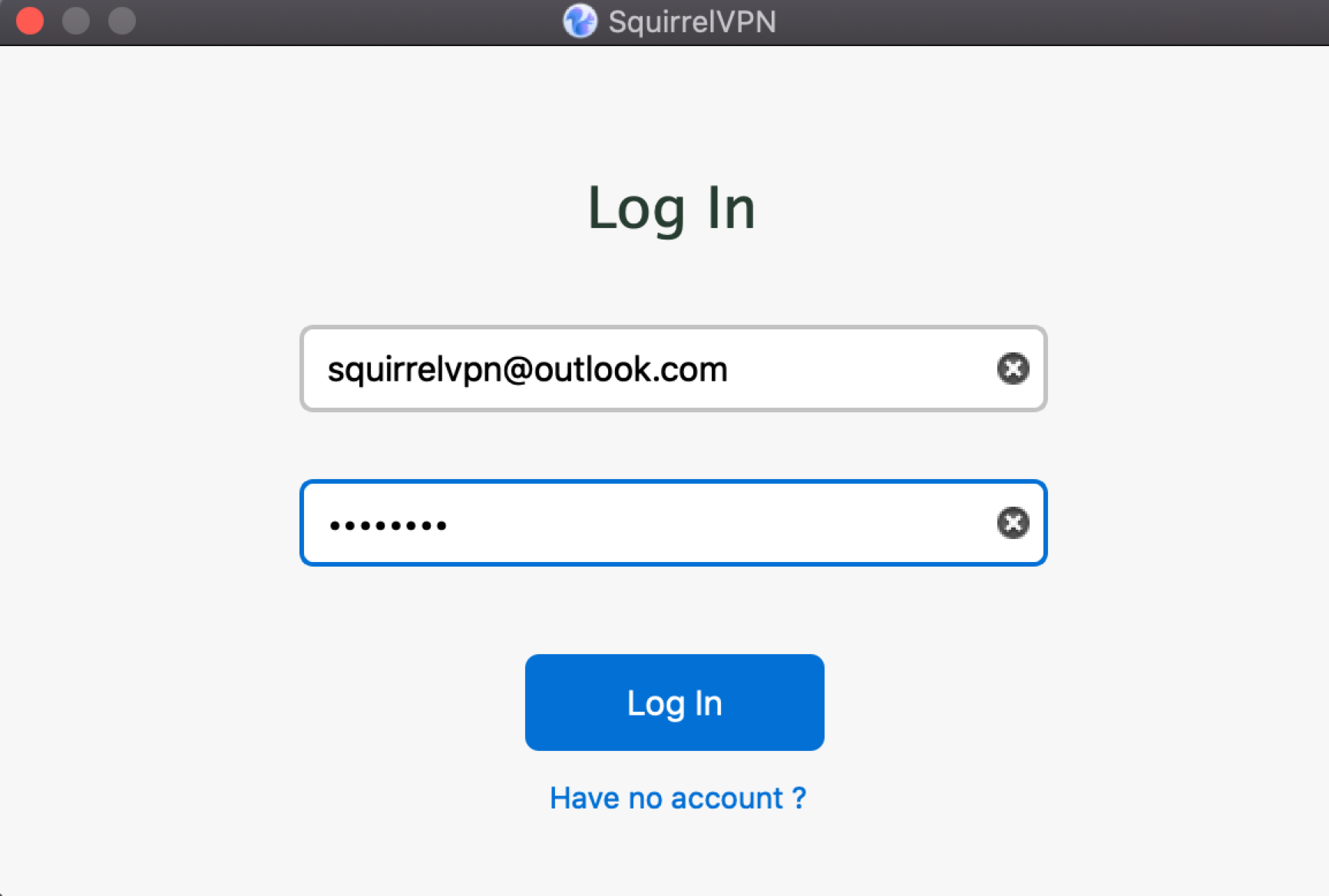
Open SquirrelVPN, and the login window will appear automatically. Enter your Squirrel account and password to log in. The system will remember your account for automatic login next time.
Registration:
Registration is not supported on the desktop version. Please download the SquirrelVPN mobile app to register. One account can be logged into any 3 devices simultaneously.
Switch/Re-login:
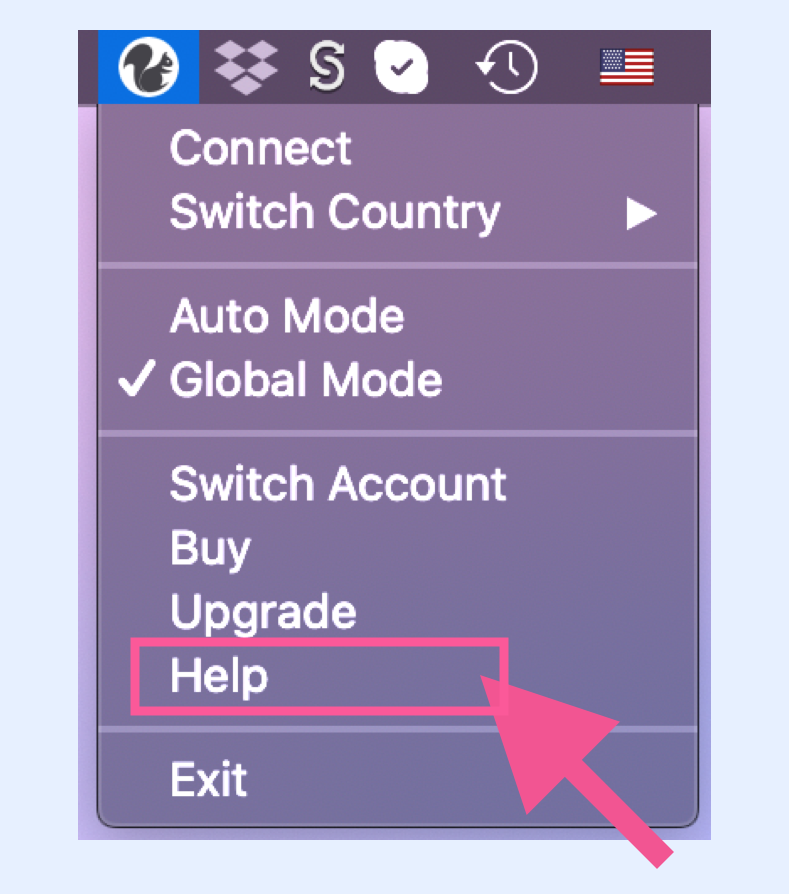
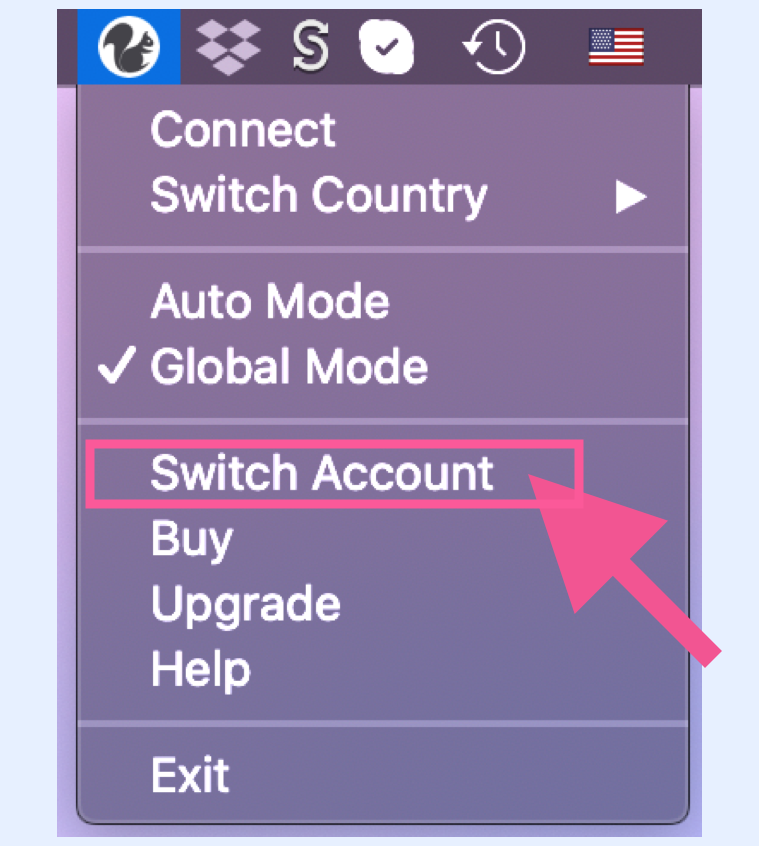
Open the desktop menu and select "Switch Account". Re-enter your account and password.
Connecting to VPN
Connect to VPN:
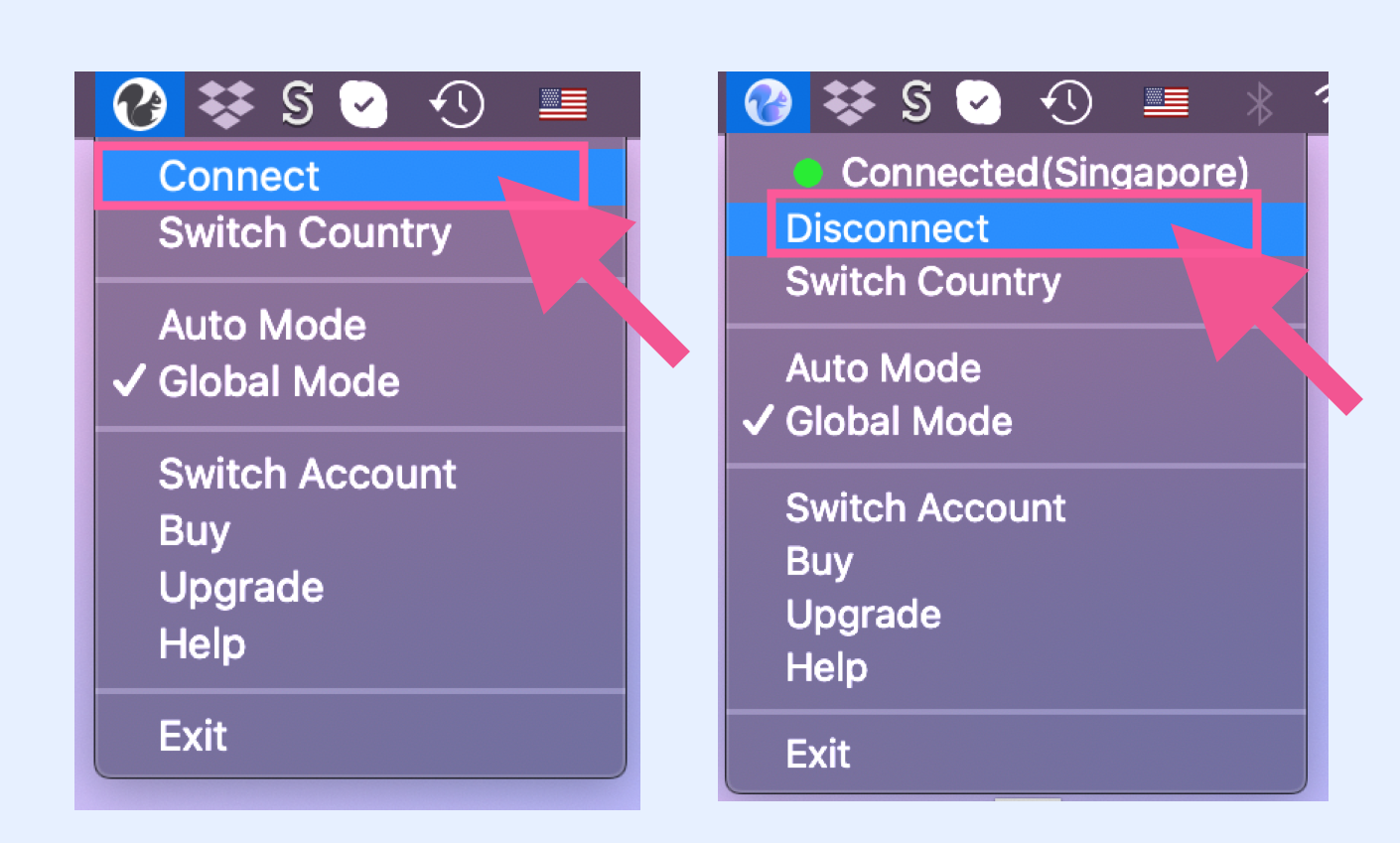
Open the menu and click "Connect".
Disconnect VPN:
Open the menu and click "Disconnect".
Switch Country/Server:
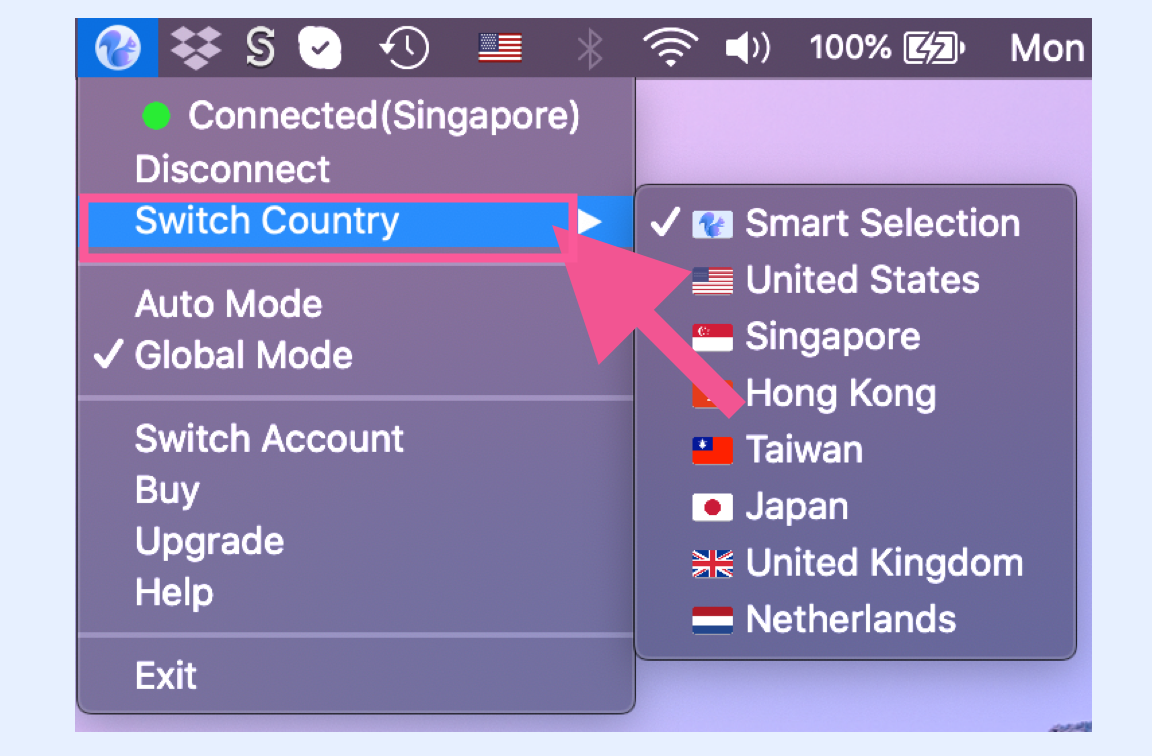
Open the menu and select "Switch Country" to see the list of countries. Click to switch servers.
There are many nodes behind each country. The system queries all nodes in the same country via a peer-to-peer network and provides the user with the node that has the lightest load and lowest latency. We recommend choosing the default "Smart Selection," which automatically matches the node with the closest location, lightest load, and lowest latency.
Global Mode & Auto Mode
Global Mode:
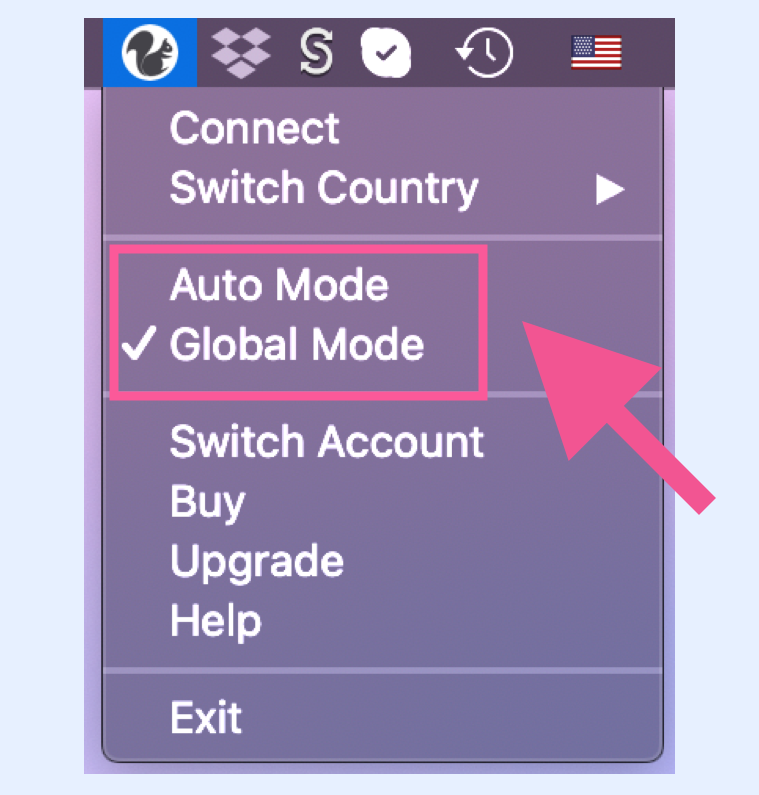
Open the menu and click "Global Mode".
Auto Mode:
Open the menu and click "Auto Mode". In most cases, Auto Mode is sufficient, as the GFW list covers thousands of commonly used foreign websites. If you encounter a specific website that won't open, then switch to Global Mode.
Global Mode: All network requests pass through the VPN. Even when you visit Taobao or Baidu, you are accessing them through the VPN. Therefore, if Global Mode is enabled, accessing domestic websites will be slower because the traffic is routed through the VPN to a foreign server and back. Auto Mode: Only websites that require bypassing the firewall go through the VPN (i.e., those on the GFW list). This list is manually updated by our server side.
Software Upgrade
How to upgrade:
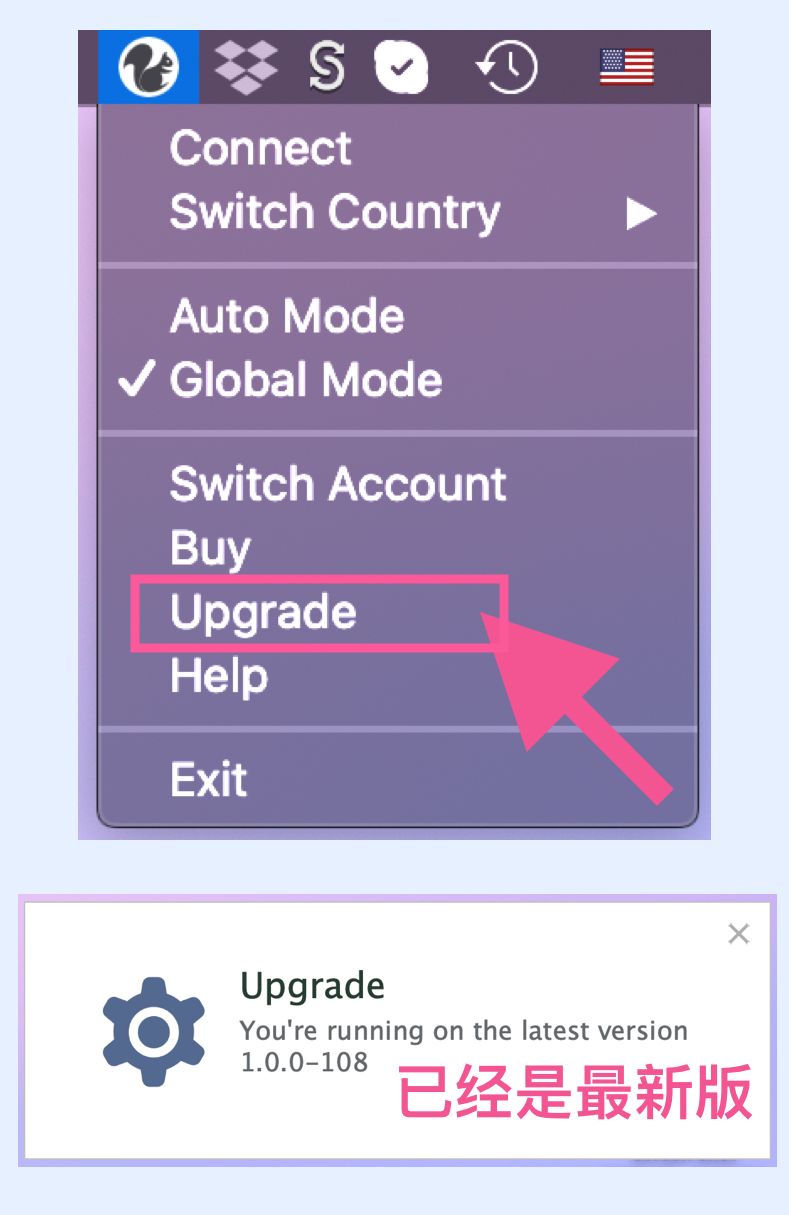
Open the menu and click "Upgrade". If an update is available, you will be prompted to download the latest version from the official website. As shown in the image, if no new version is found, you are already using the latest version. If there is a major update, the system will also automatically pop up an upgrade notification.
Recommendation: If you find a new version, please upgrade immediately to maintain the stability and reliability of your VPN. As the firewall is constantly changing, Squirrel's software updates are very important :)
Desktop Version User Guide
Open the menu and click "Help". You can view the operation guide for SquirrelVPN (Desktop Version), which is this webpage.