[Tutorial] Register a US Apple ID in 8 Minutes (Tested Effective in 2021)
![[Tutorial] Register a US Apple ID in 8 Minutes (Tested Effective in 2021)](https://devcdn.pseo.one/694b8c5feb29738fb9516944/694b8c5fd1cc3dd4fcb00fe5/tutorial-register-a-us-apple-id-in-8-minutes-tested-effective-in-2021/cover-register-US-id.png)
Tutorial Content:
This tutorial is simple and effective, requiring no overseas phone number, and can be completed in 8 minutes. Tested effective in February 2021.
Tutorial Purpose:
Due to VPN censorship and removal of apps from the Chinese Apple App Store, Squirrel VPN is only available on overseas Apple App Stores. Users who wish to download it need their own overseas Apple ID. Squirrel has launched this tutorial, which is simple and easy to follow. This tutorial is straightforward and effective. If you encounter any problems, please read the steps carefully and follow them precisely; you will definitely succeed in registering your Apple ID. Let's get started!
Step 0: Preparation
Use a VPN to turn on "Global Mode" and connect to the United States. You must remain connected to the US throughout the entire registration process.
If you don't have a VPN yet, you can go to the Squirrel VPN official website to download it. New users get a 3-day trial. Taking Squirrel VPN as an example, be sure to enable "Global Mode" to ensure your IP address is in the United States.
Squirrel Desktop App: Check "Global Mode".
Squirrel Mobile App: Turn on "Global Mode" and reconnect the VPN.
Step 1: Website Registration
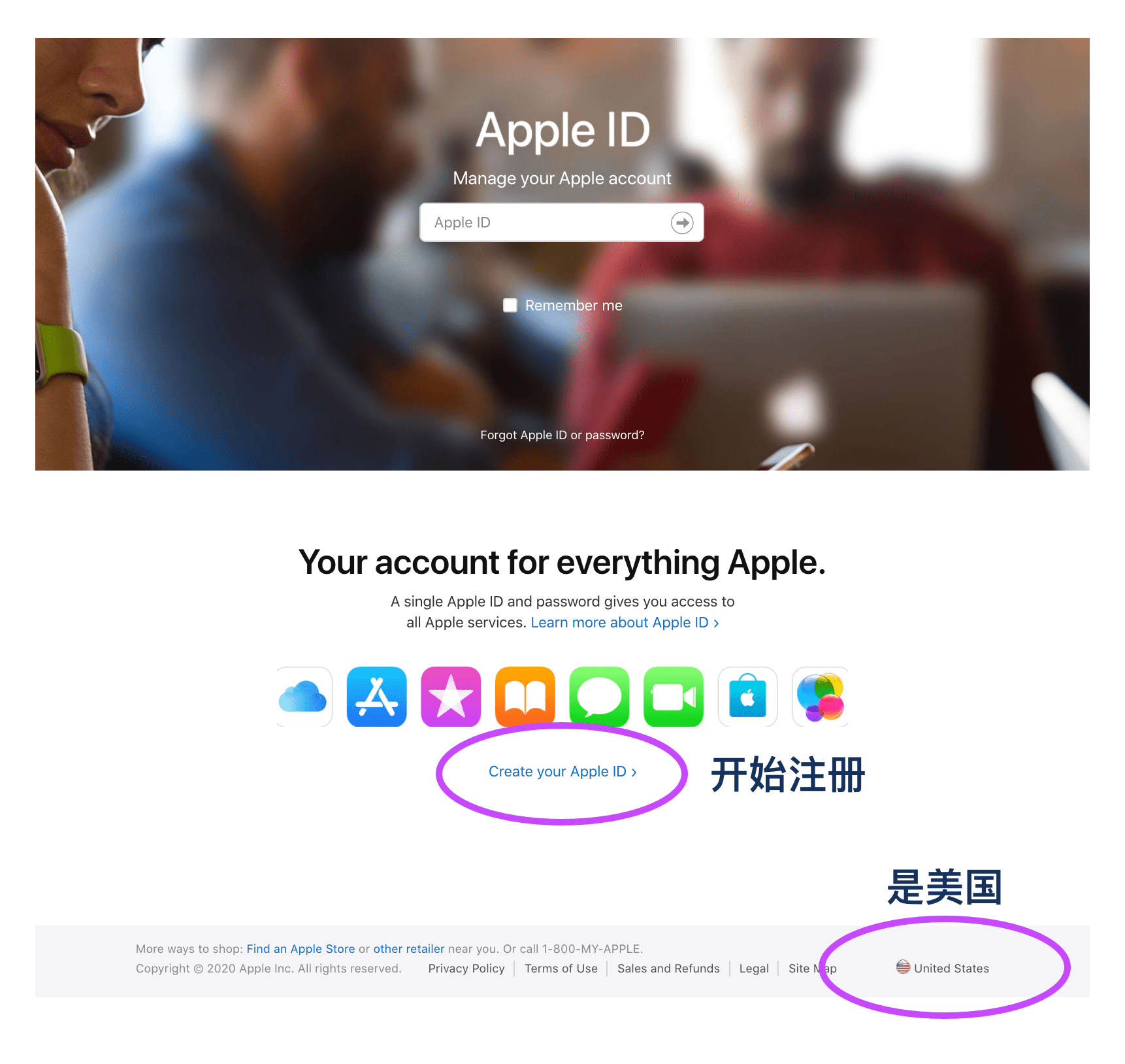
Go to the official Apple website and click "Create Your Apple ID". Note: The bottom right corner of the page should show "United States". If it doesn't, please ensure your VPN is in Global Mode and connected to the US.
Step 2: Fill in Information
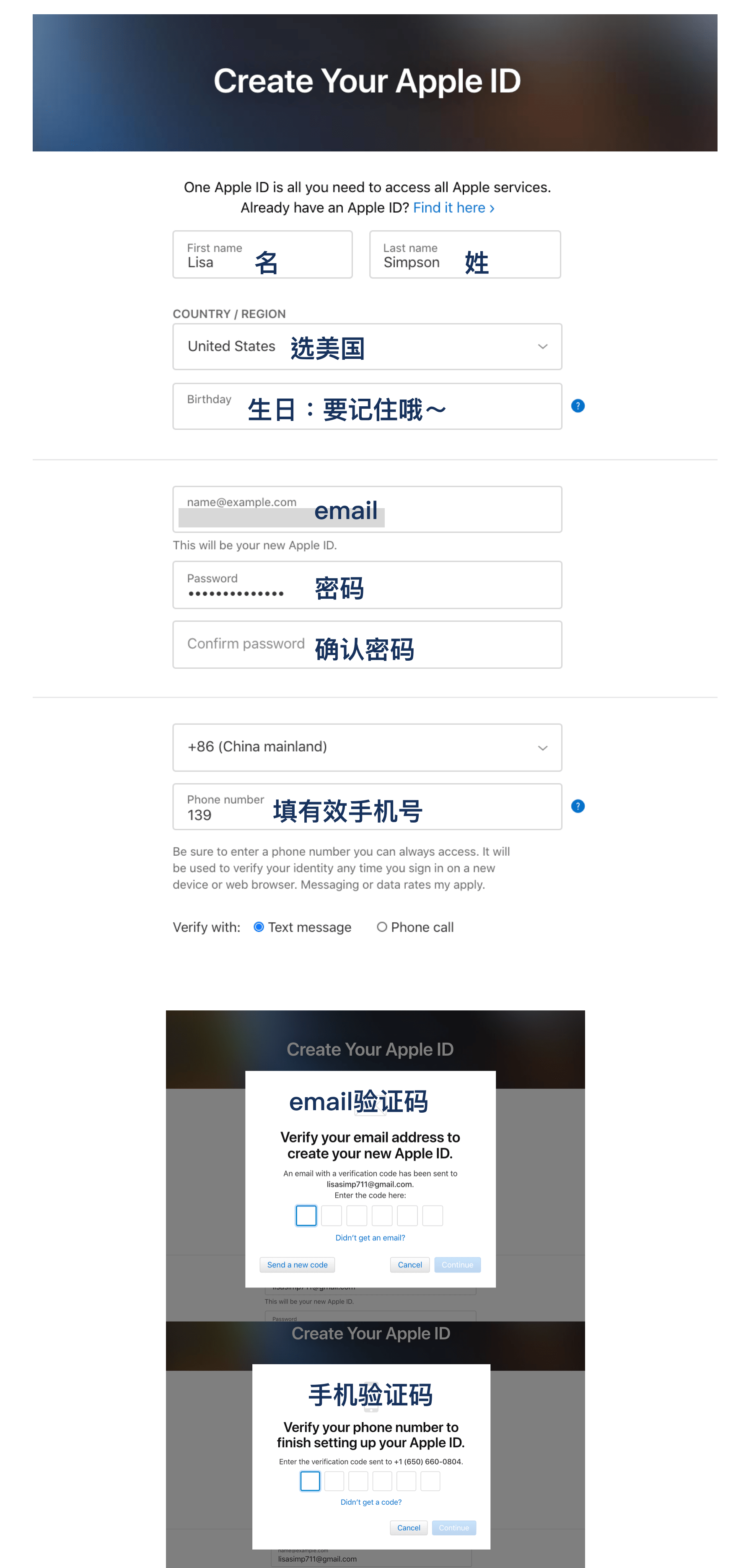
Fill in the account details.
For "Country/Region", please select "United States".
- Email: Use an email address that has not been used to register an Apple ID before.
- Birthday: Do not fill this in randomly; make sure you can remember it. It doesn't have to be your real birthday, but you will need it for verification when logging in on multiple devices later.
- Phone Number: Please enter a valid phone number! You can use a mainland China phone number as long as it can receive SMS verification. You will need it to recover your account in the future.
You can also use a temporary number (search for "disposable number" on Google), but you may encounter trouble when trying to recover your account later.
A mainland China phone number works for registration. Make sure you remember the birthday you entered.
At this point, the account registration is not yet complete; you still need to finalize your information!
Step 3: Finalize Information
After registration is complete, you will be automatically redirected to the login state. Please complete the "Payment & Shipping" information. Not redirected? Please log in again on the official Apple website.
Click "Edit":
Fill in the address and phone number as follows:
Payment Method: Select "None". Address: 1839 Molalla Ave, Oregon City, OR 97045 Phone: 4083301234 Click "Save".
If you find this address invalid, you can use another valid US address (in Oregon). For example, search for a Starbucks in Oregon on Google Maps by searching "starbucks in Oregon USA".
Step 4: Verification and Activation
Now for your phone: Open the App Store, sign out of your existing Apple ID, and log in with the newly registered Apple ID.
Upon your first login, you need to complete the setup. Click "Review". Agree to the terms and conditions, then click "Next". Because you filled in the "Payment & Shipping" information on the website earlier, it will be automatically populated here. Click "Next" to finish.
If you did not fill it in earlier, you will need to provide it here. However, you cannot select "None" as a payment method here; you must return to Step 3 and modify it on the official website, as it cannot be changed within the App Store.
Congratulations! You have successfully registered a US Apple ID.
Please keep your account and password safe. Thanks for reading!
Other Articles:
Register a US Apple ID in 8 Minutes - 2022 Switch Apple Stores in 1 Minute Squirrel VPN FAQ
Squirrel Official Website Backup Official Website (No VPN required)