[Tutorial] Register a US Apple ID in 8 Minutes (2022 Latest, No VPN Required, Mobile-Only)
![[Tutorial] Register a US Apple ID in 8 Minutes (2022 Latest, No VPN Required, Mobile-Only)](https://devcdn.pseo.one/694b8c5feb29738fb9516944/694b8c5fd1cc3dd4fcb00fe5/tutorial-register-a-us-apple-id-in-8-minutes-2022-latest-no-vpn-required-mobile-only/cover-register-US-id.png)
[Tutorial] Register a US Apple ID in 8 Minutes (2022 Latest, No VPN Required, Mobile Operation)
Tutorial Content:
This tutorial is simple and effective. No VPN is required, and it takes 8 minutes to complete.
Note:
Please perform all steps on your mobile phone; no computer is needed! (The computer interface is different and requires additional information. It is recommended to use your phone and follow the tutorial exactly.)Do not use any Chinese characters throughout the process! Use Pinyin for names, and follow the tutorial for other information.
Let's get started!
Tutorial Purpose:
Due to VPN censorship in the domestic Apple App Store, Squirrel VPN is only available on overseas Apple App Stores. Users who want to download it need their own overseas Apple ID. Squirrel has launched this simple and easy-to-follow tutorial. If you encounter any problems, please read the steps carefully and follow them precisely; you will definitely succeed in registering your Apple ID. Let's do it together!
Step 1: Open the US Official Website
Go to the Apple US official website: www.apple.com. (Make sure there is no ".cn" in the URL.)
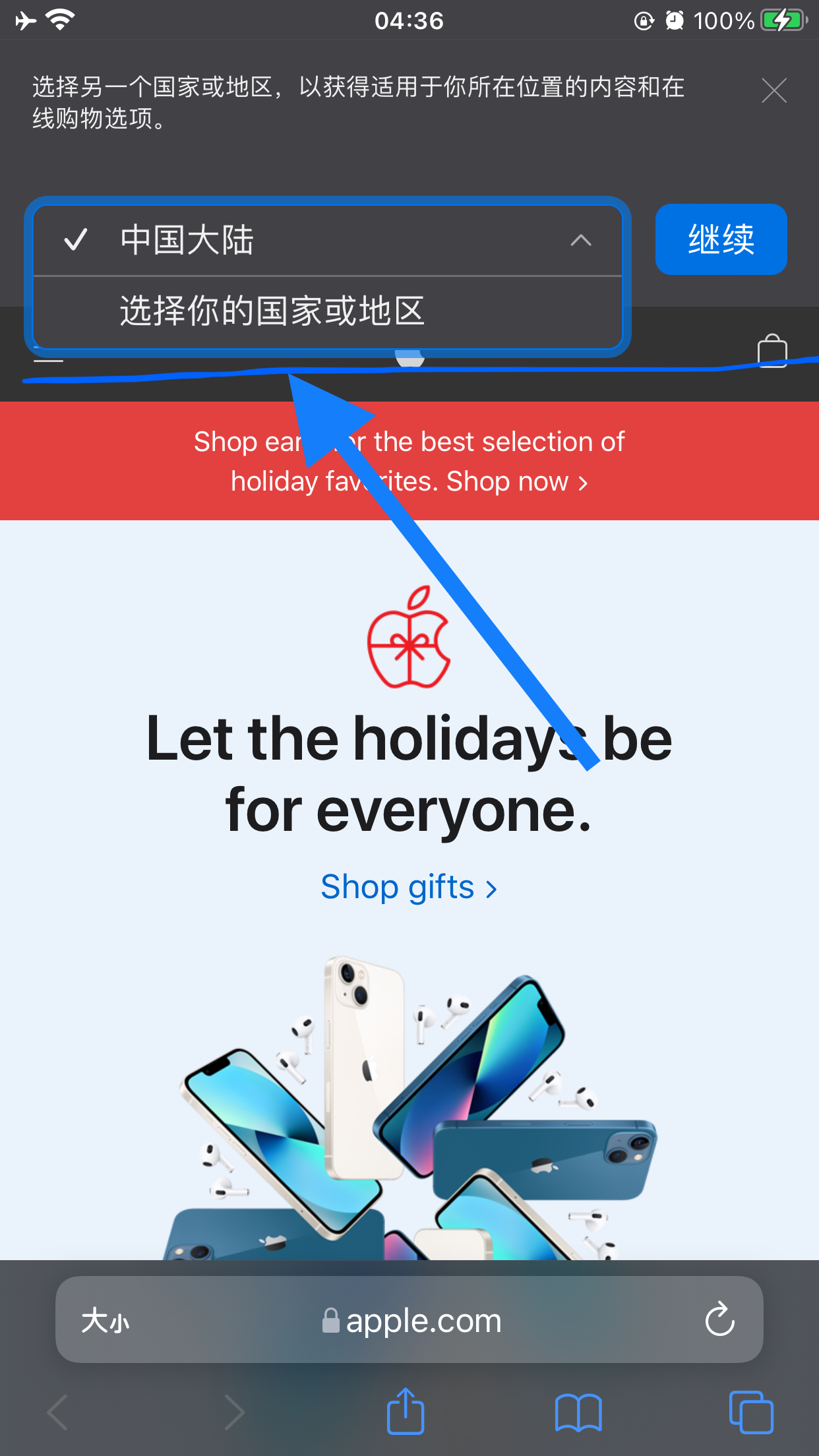
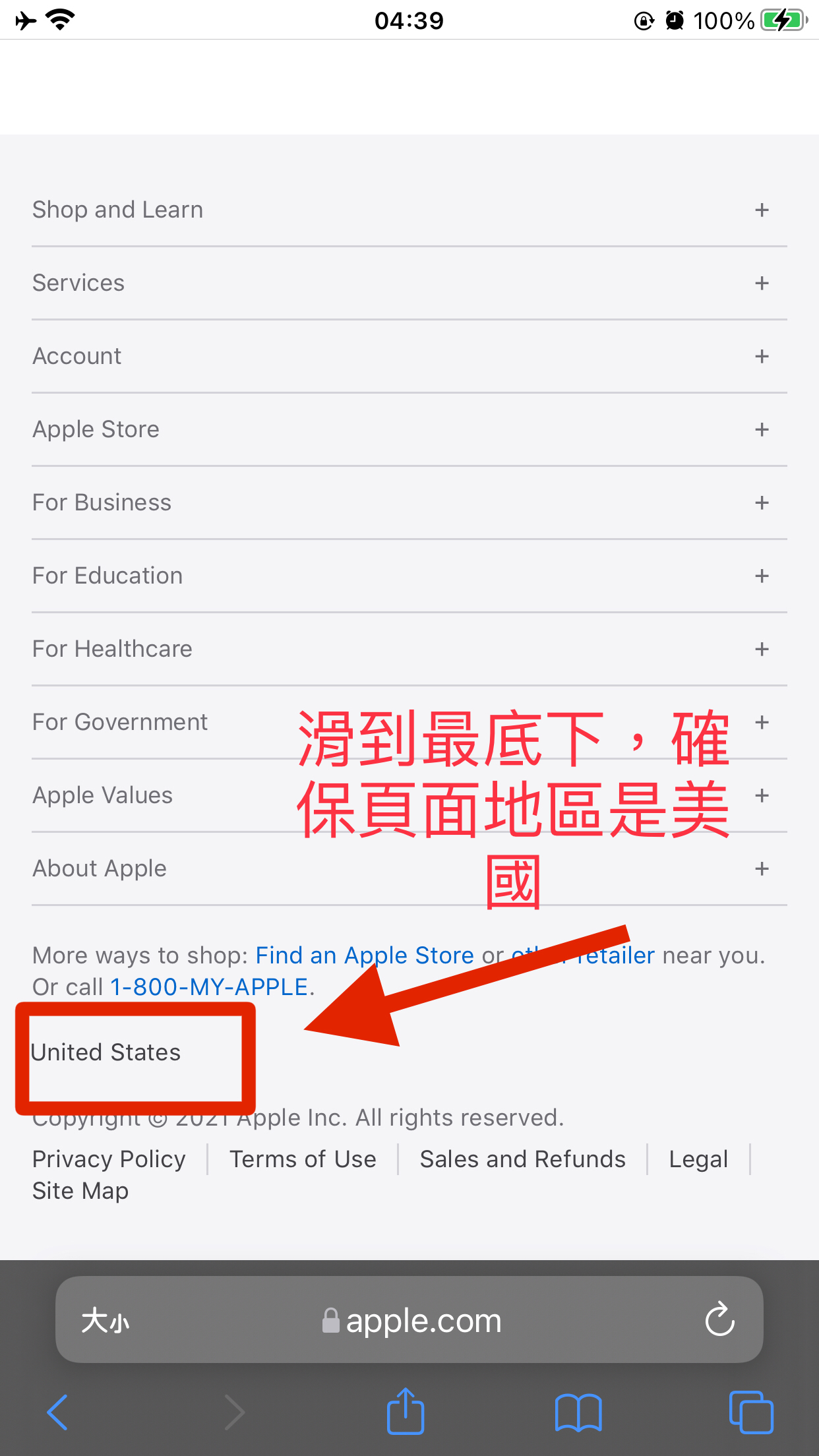
Note: Even if you change the region to the United States, there might still be a "Mainland China" prompt at the very top of the page when using a network in mainland China. This has no effect, so just ignore it. Do not click "Continue," or it will automatically redirect you to the mainland China page. If you are unsure, scroll to the bottom of the page to confirm it says "United States." If it doesn't, click on the country name to change it to the United States.
Step 2: Find the Registration Link
Confirm the page is entirely in English and the bottom of the page shows "United States."
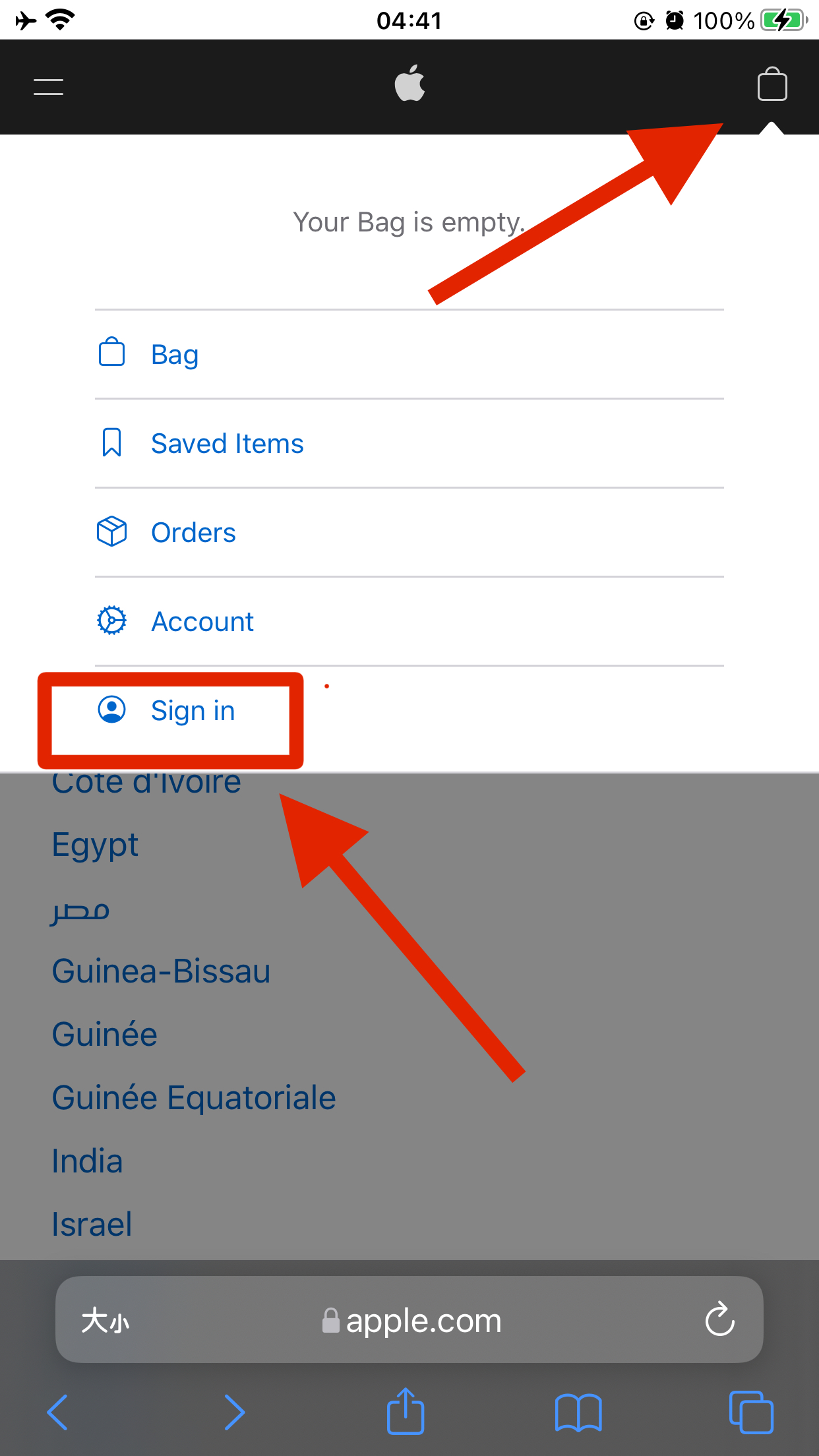
- Find the "Sign In" area: Click the "Shopping Bag" icon in the top right corner and select "Sign In."
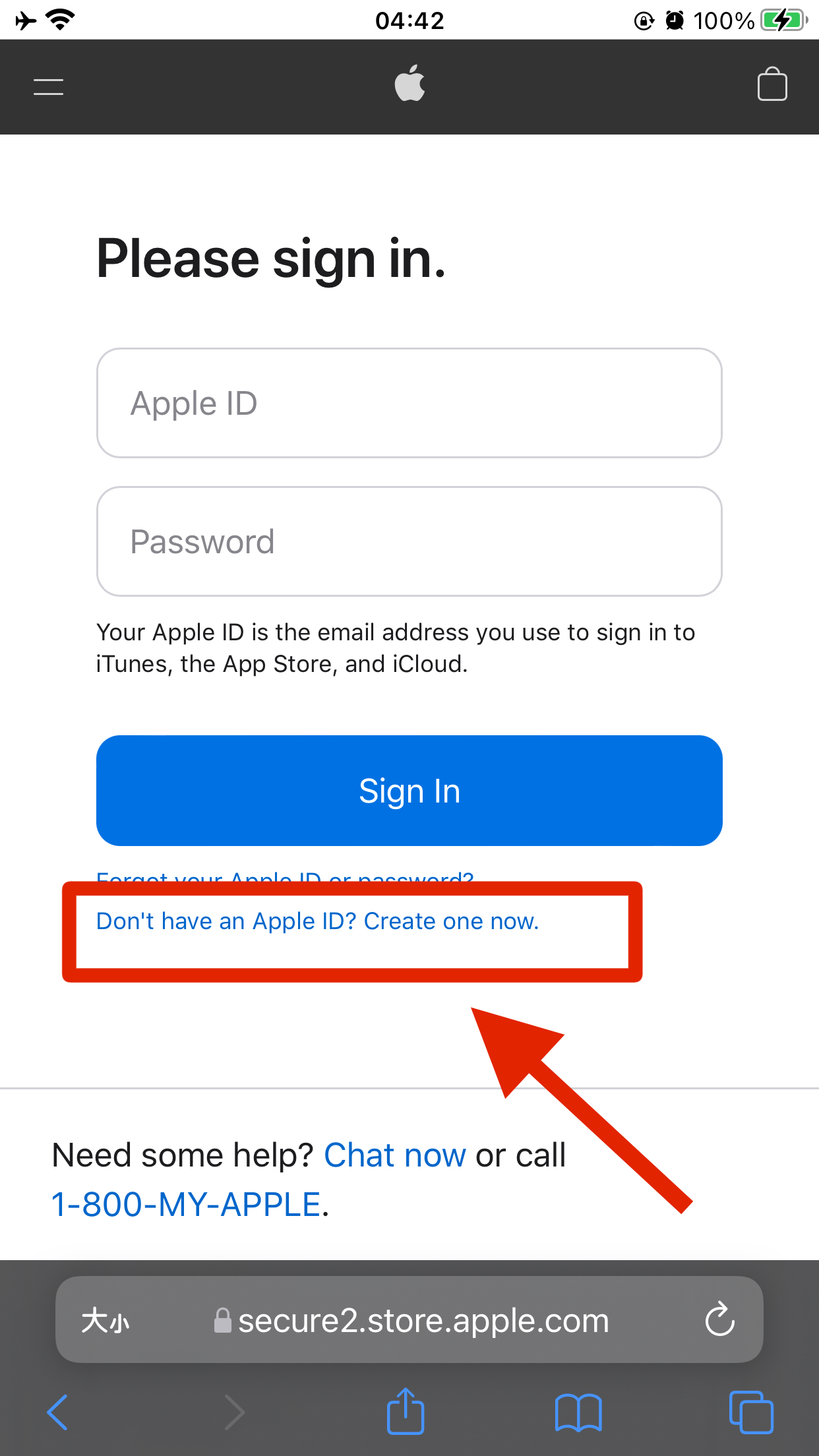
- Since you don't have an account yet, you need to register a new one. Click the link that says: "Don’t have an Apple ID? Create one now."
Step 3: Fill in Information
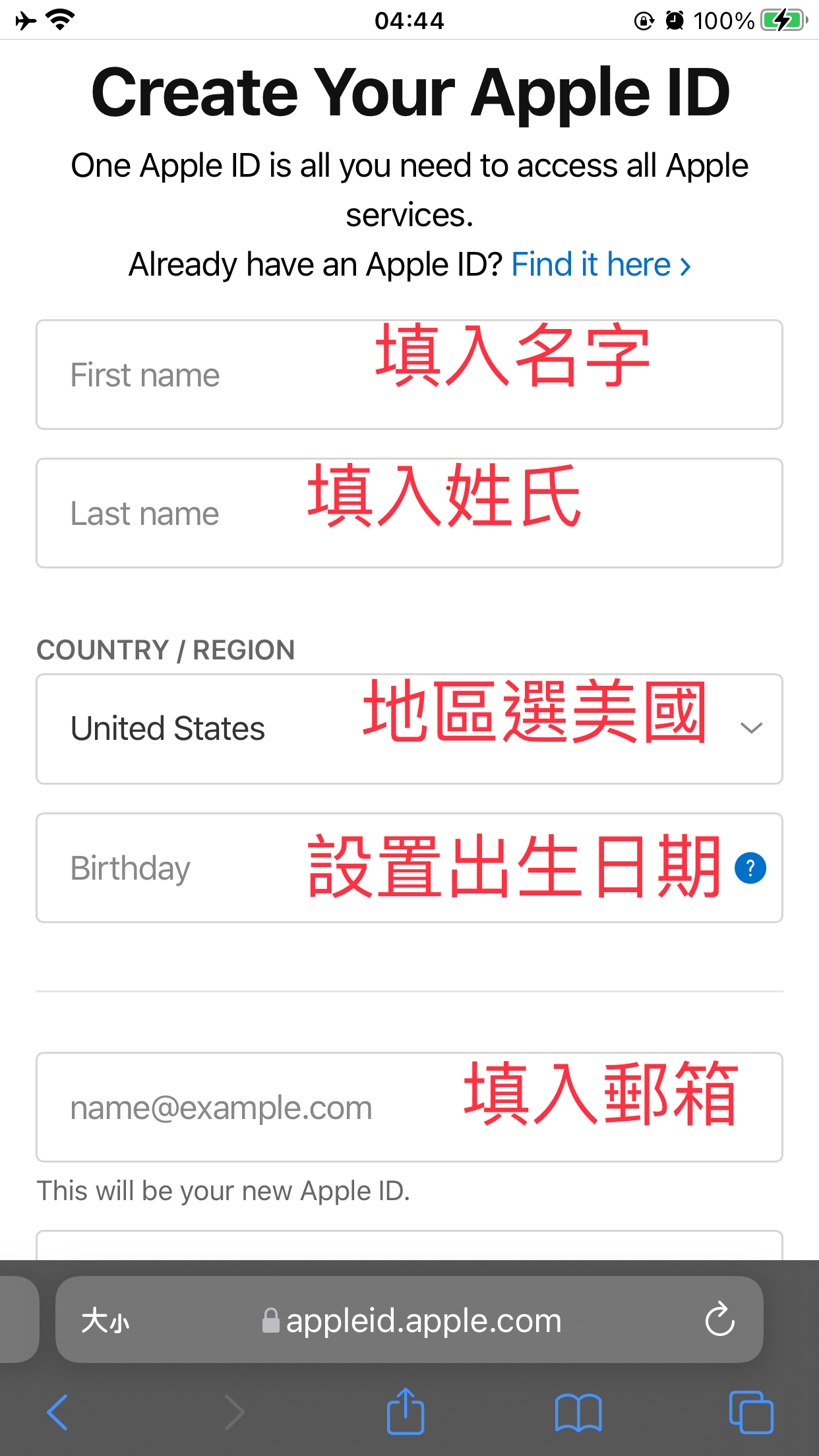
Fill in the information as prompted:
- First and last names can be anything, but you must use
English letters (Pinyin).- COUNTRY/REGION must be set to "United States."
- Date of Birth: Format is Month/Day/Year. Do not fill it in randomly;
make sure you can remember it. It doesn't have to be your real birthday, but you will need it for verification when logging in on multiple devices later.- Email: Use an email address that has not been used for an Apple ID before.
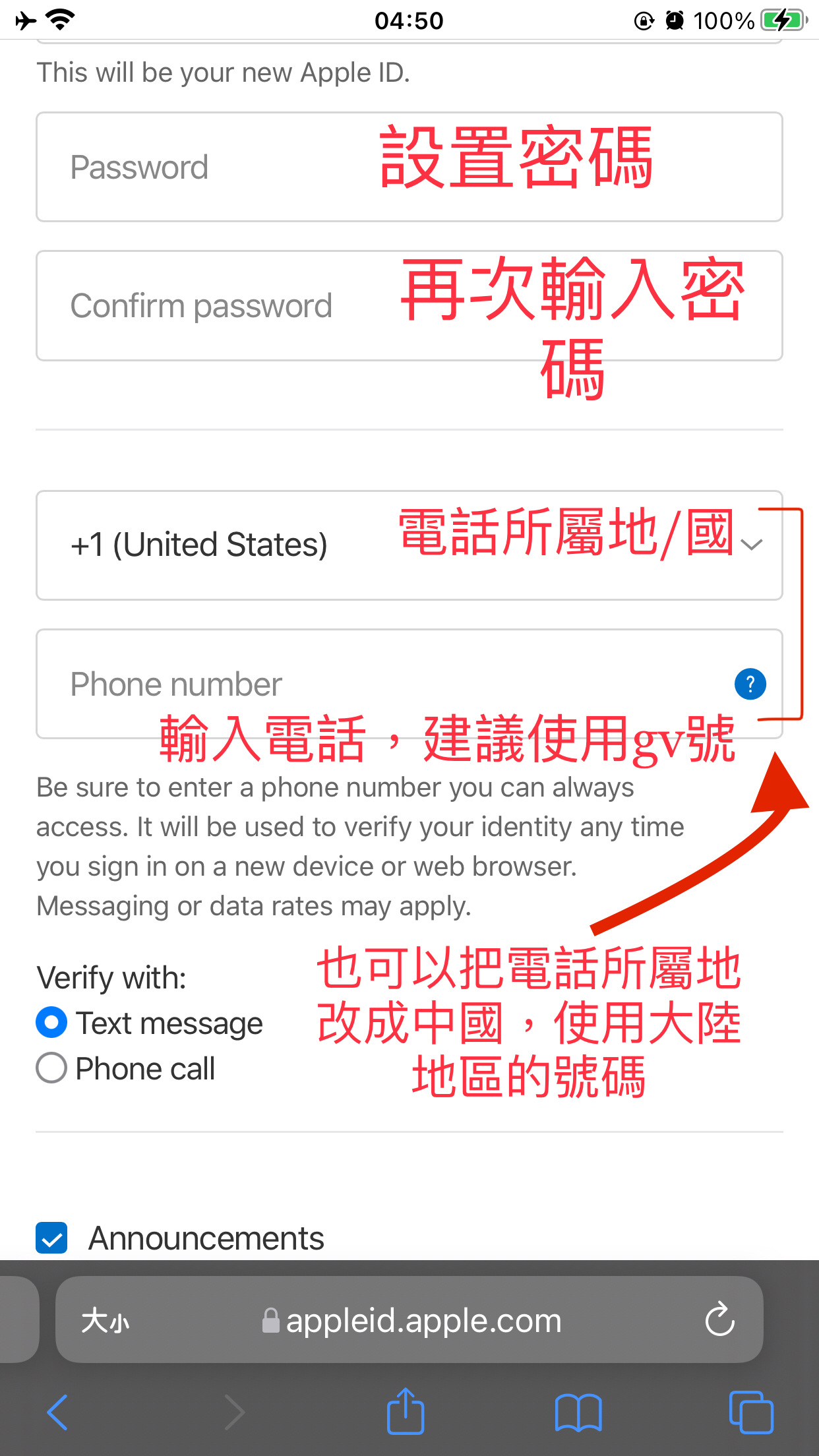
- Password.
- Phone (Important):
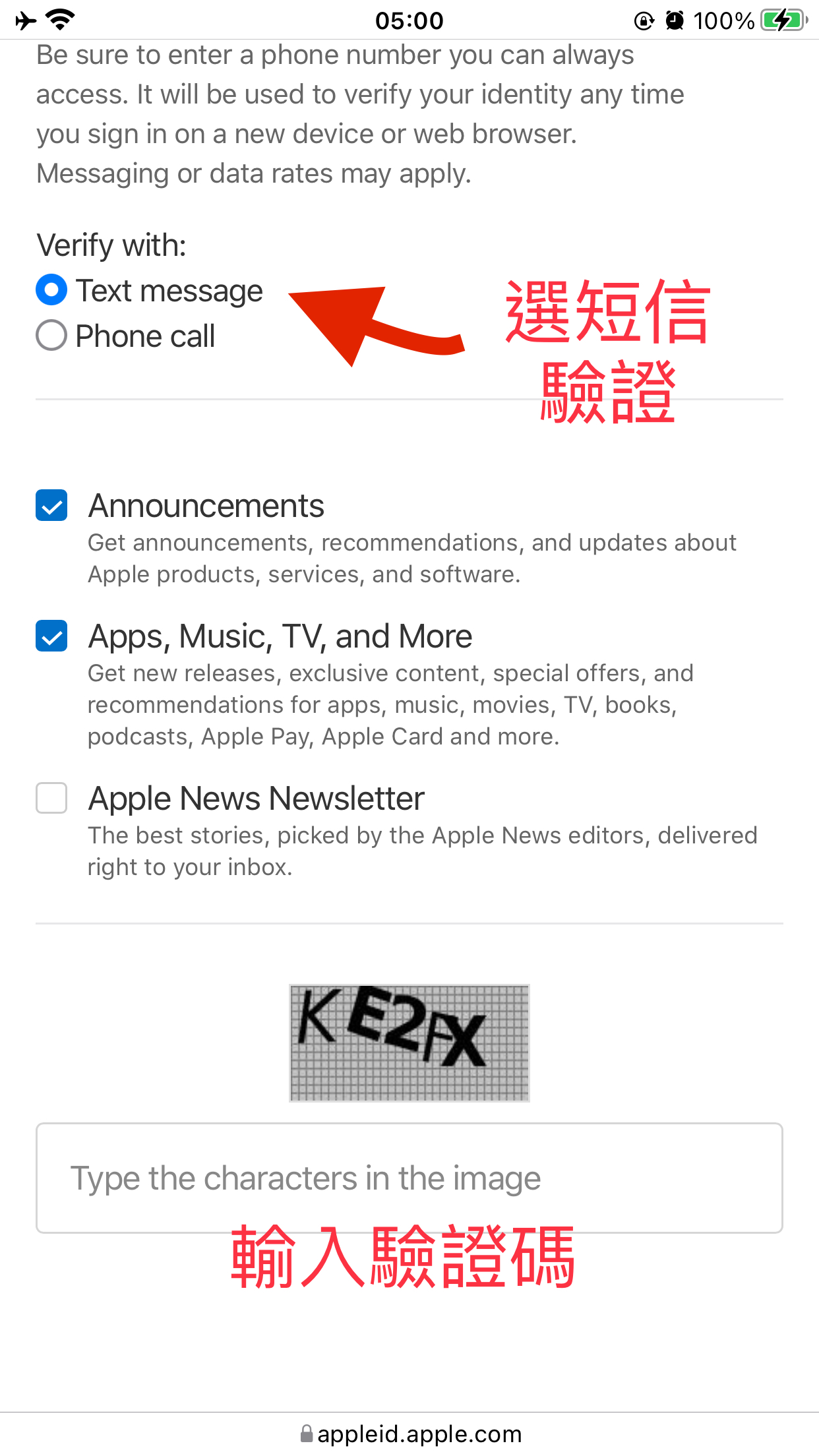
You must provide a valid mobile number. You can use a mainland China number!You will need to receive verification codes for future logins, purchasing services, downloading apps, account recovery, etc. If using a mainland number, change the country code to "+86 China." (Recommended) You can also use a US virtual number like Google Voice (purchased on Taobao or registered yourself) so that your new ID remains completely separate from mainland China.- Verify with: Select "Text message."
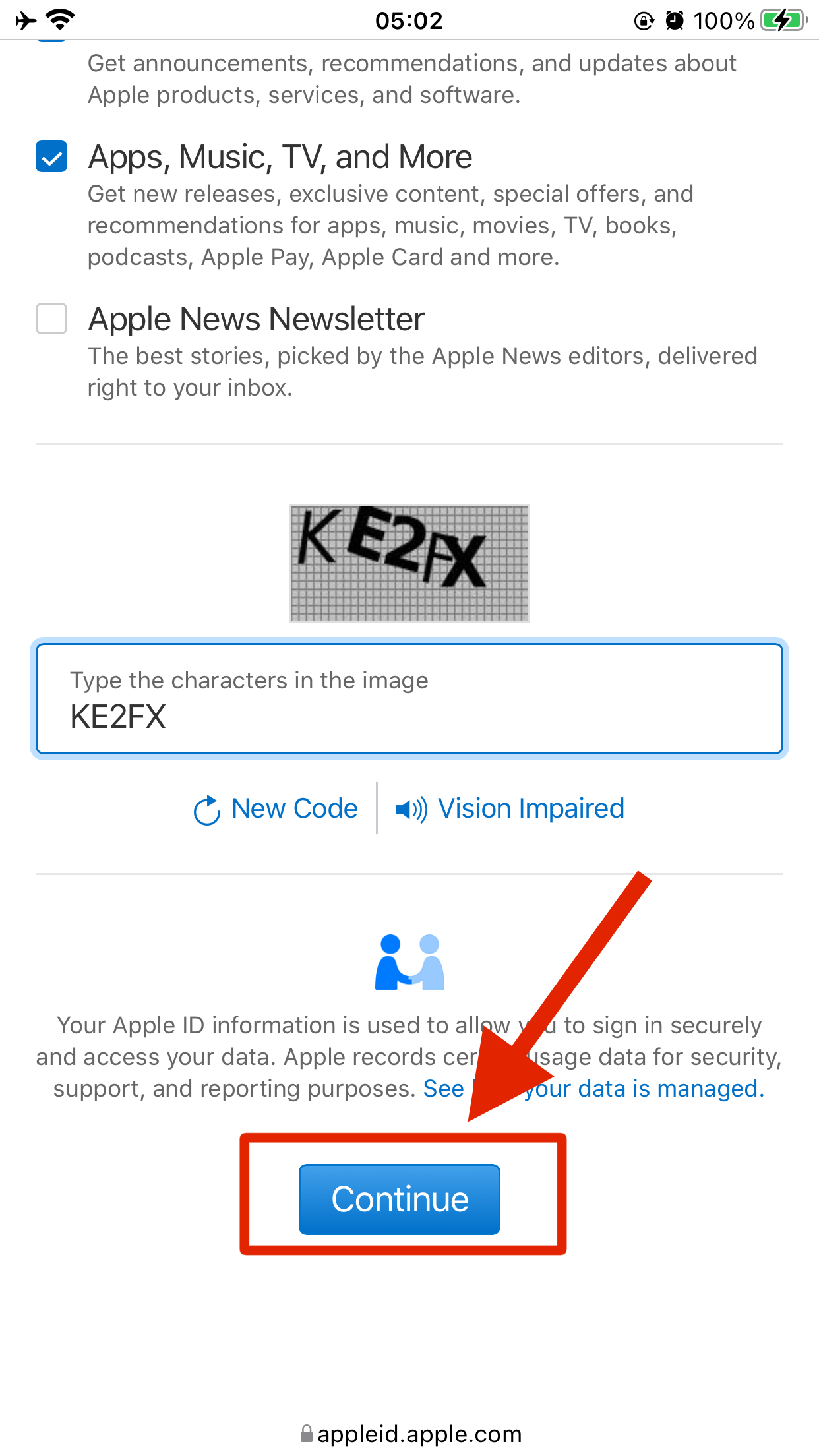
- Enter the verification code -> Continue, then enter the email and phone verification codes respectively.
After entering the verification code, click "Continue."
Step 4: Verify Phone Number and Email
- Verify your email by entering the code you received.
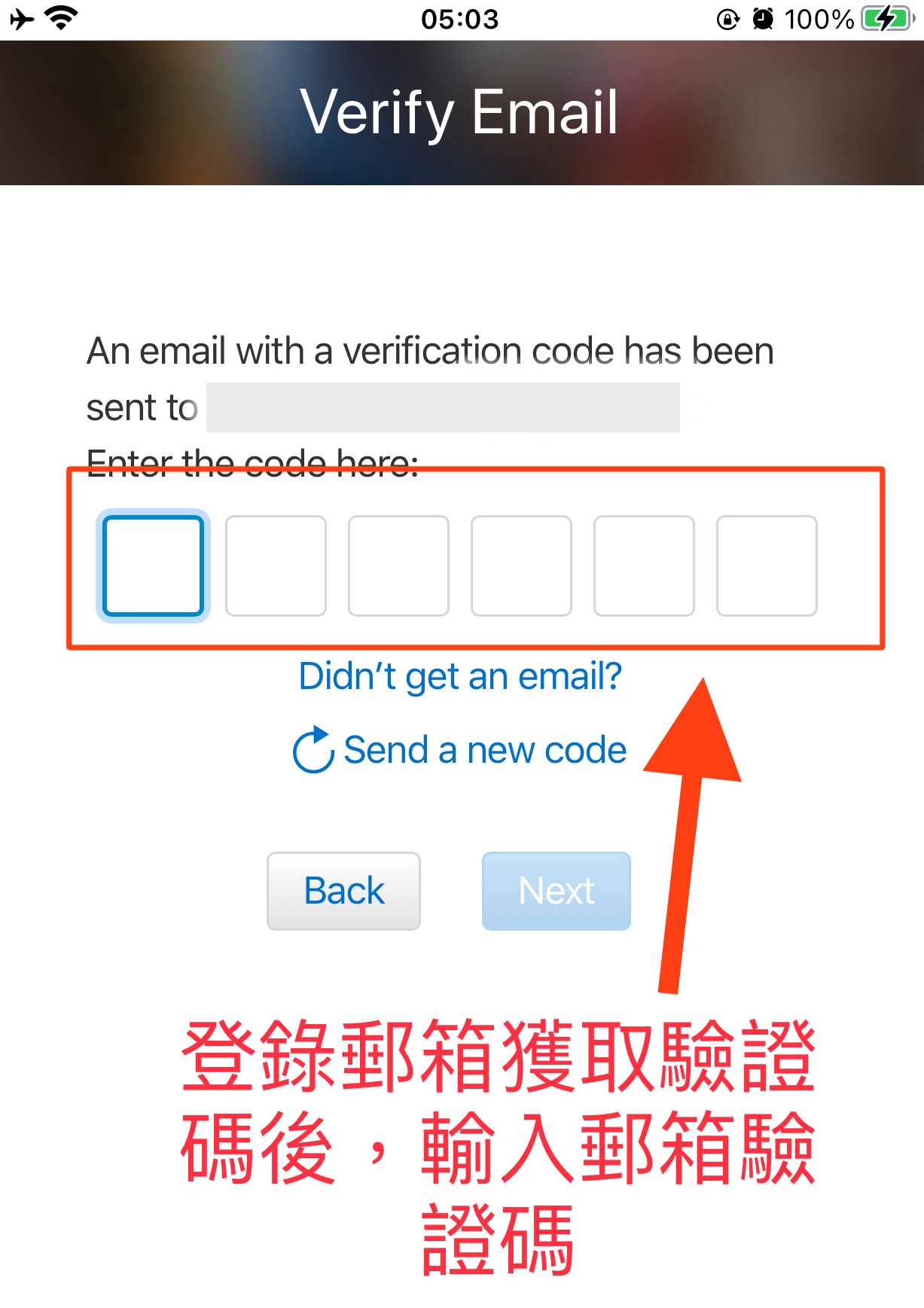
- Verify your phone number by entering the code you received.
Step 5: Switch to the New Account
Once the account is registered, you need to log in to the App Store to activate it.
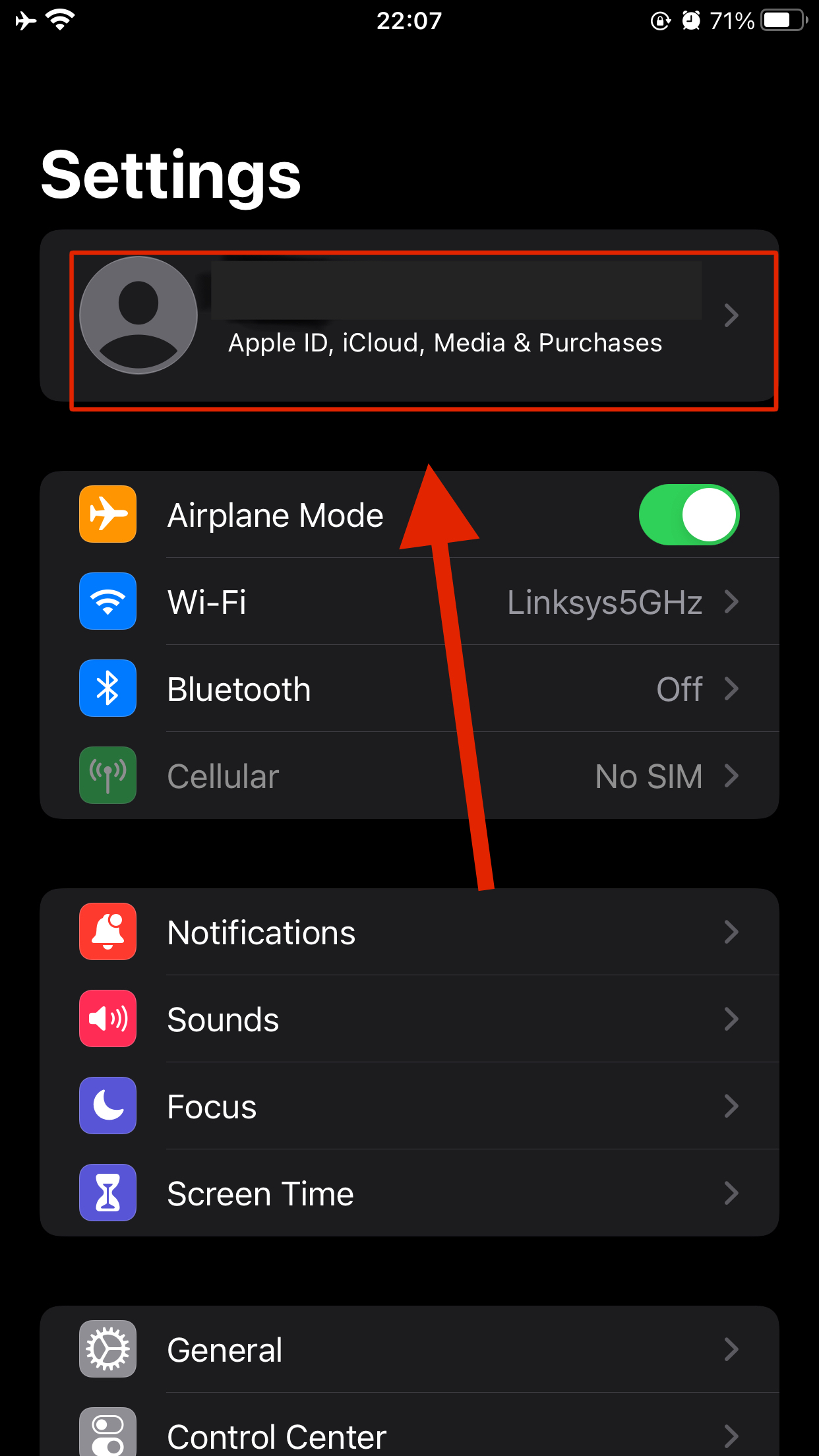
- Open "Settings" on your phone.
- Find the Apple ID page. If you don't want to sign out of your device's main ID (the device ID and the Media & Purchases ID are separate and have different functions), remember do not click "Sign Out" at the bottom.
- Carefully follow the image below: select "Media & Purchases" -> "Sign Out."
- Remember to save your old account information.
Step 6: Log in to the New Account
Open the "App Store" and log in with your newly registered account ID. You will need to enter a verification code for the first login.
- Open "App Store" -> Click the avatar in the top right corner -> Enter account and password -> Enter phone verification code -> Review (Activate).
- Check "Agree to Terms and Conditions" -> Region must be "United States" -> Next.
Tip: Since this account has never been used, you need to review the information.
Check "Agree to Terms and Conditions" -> Region must be "United States" -> Next.
Step 7: Fill in Address Information
Fill in a valid US address: (Important!) You must find your own address and phone number. If everyone uses the same one, the account is easily banned. Duplicate addresses will lead to account suspension!
Do not use any Chinese characters when filling this out.
How to find an address:
- Use Google/Apple Maps to find a Starbucks address in Oregon. Search for "starbucks in Oregon USA." (Since US sales tax varies by state, it is recommended to generate an address in one of the five tax-free states: Alaska, Delaware, Montana, New Hampshire, or Oregon to reduce costs.)
- You can also use a "US Address Generator": https://www.meiguodizhi.com/
- Copy and paste the generated address into the fields as shown in the image below.
- Phone: The phone number here must be a US number. This number is used for delivery contact when purchasing Apple products. Since you cannot purchase physical Apple products from the US while in China, this number is not critical; you can use the one generated with the address.
Example Address: 1839 Molalla Ave (Street), Oregon City (City), OR (State) 97045 (Zip Code) Example Phone: 4083301234 You must find your own address and phone number. If everyone uses the same one, the account is easily banned. Duplicate addresses will lead to account suspension!
Congratulations! You have successfully registered your US Apple ID.
Please keep your account and password safe. Thanks for reading!
Other Articles:
Switch Apple Store in 1 Minute Squirrel VPN FAQ Register a US Apple ID in 8 Minutes - 2021
Squirrel Official Website Backup Official Website (No VPN needed)